Notifications
Managing Email Notifications
Your Account Settings page lets you set your timezone, turn the daily data ingestion digest email on or off, and choose what time that email arrives.
Where to Find It
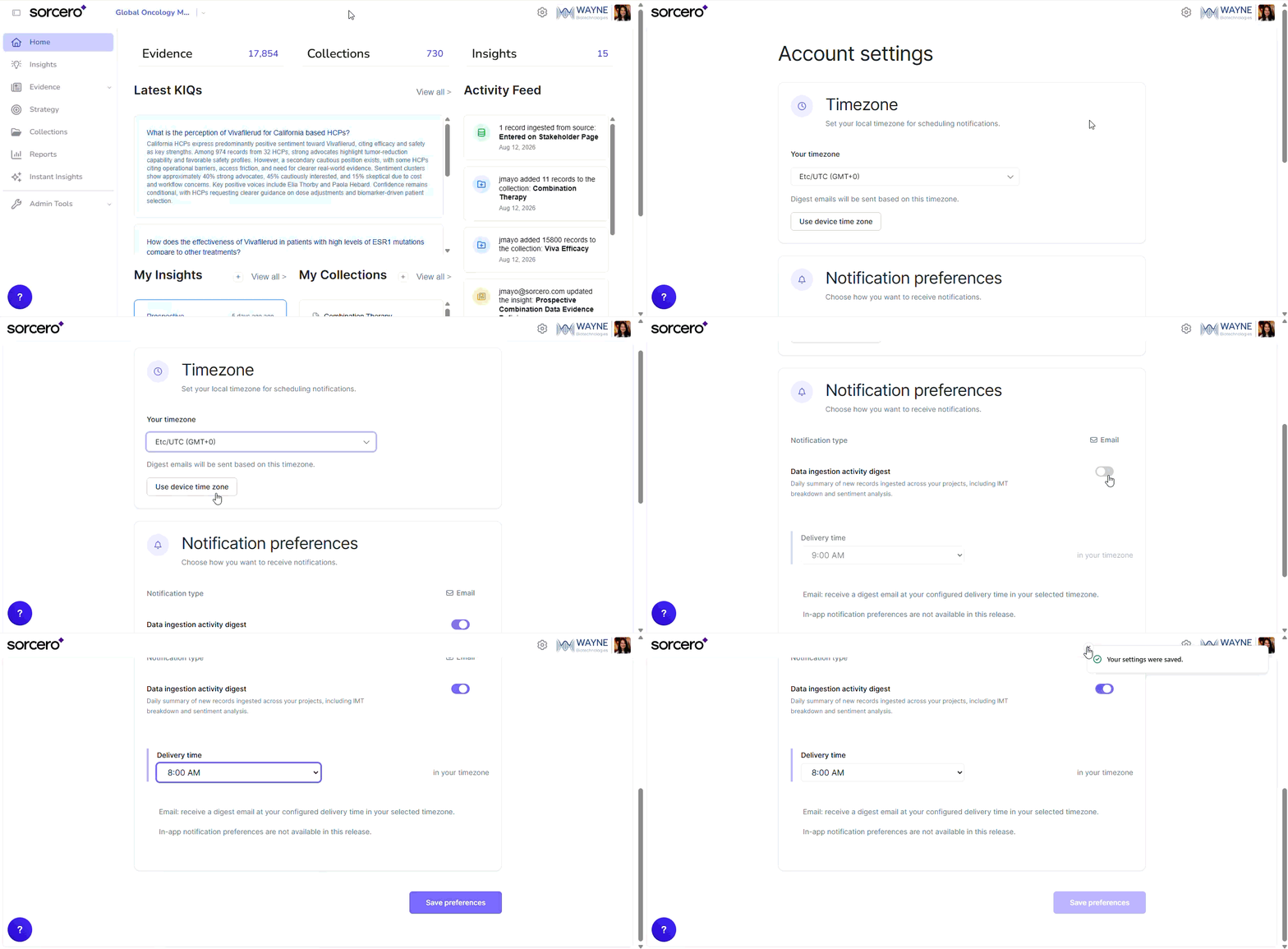
Click your profile picture in the top right of any page, then click Preferences. The Account Settings page opens.
Setting your timezone
- Click your profile picture, then click Preferences.
- Under Timezone, open the Your timezone list and select your timezone. To match the device you are working on, click Use device time zone instead.
- Click Save preferences.
A confirmation appears at the top of the screen when the change is saved.
Your timezone controls when digest emails are sent, so set it before you choose a delivery time.
Turning the Digest Email On or Off
- On the Account Settings page, scroll to Notification preferences.
- Find the Data ingestion activity digest row. The Email column on the right holds the toggle.
- Click the toggle to turn the digest on or off.
- With the digest on, open the Delivery time list and select a time. Times are shown in the timezone you set above.
- Click Save preferences.
You can also turn the digest off from the unsubscribe link at the bottom of any digest email.
What the Digest Email Contains
The email is a summary of records ingested since the last digest. It is organized in two layers.
An overall summary across your projects, covering:
- New records
- Stakeholders
- Projects
- Collections
A section for each project with new data, covering:
- Project name and a link that opens the project in the platform
- Number of records ingested
- Number of distinct stakeholders
- Records by source
- Overall sentiment
- Records by Intelligent Medical Themes™
- Top tags
- Collections updated
Use the project sections to see which Collections changed before you open the platform. If a Collection you rely on is listed, the records behind it have changed since you last reviewed it.
Acting on the Email
Each digest includes three links:
- A link that opens Sorcero, so you can go straight to the new records.
- A link that opens your notification settings, so you can change your delivery time or turn the digest off.
- An unsubscribe link, which turns the digest off without opening the platform first.
What to expect
- The digest is on by default. When email notifications are first turned on for your organization, you receive a single introductory email explaining the digest and pointing you to your settings. It is not sent again.
- You only receive a digest when new data has been ingested. On days with no new data, no email is sent.
- The digest only covers projects that have notifications enabled. If an admin has disabled notifications for a project, that project never appears in your email, regardless of your own settings.
- Email is the only delivery method available. The Notification preferences section notes on screen that in-app notification preferences are not available in this release.
Troubleshooting
Problem | What to do |
|---|---|
You are not receiving any digest emails | Check that the Data ingestion activity digest toggle is on and that you clicked Save preferences. |
A project you work in is missing from the email | No new records were ingested for that project during the period, or notifications are disabled for it. |
The email arrives at the wrong time of day | Confirm Your timezone is correct, then confirm the Delivery time selection. Both must be saved together with Save preferences. |
You changed a setting but it did not take effect | The change is not stored until you click Save preferences and see the confirmation. Reopen the page to confirm the values held. |
You want to stop the emails | Turn the Data ingestion activity digest toggle off, or use the unsubscribe link in the email. |
Collections listed in the email look unfamiliar | The digest reports every Collection that received new records, including Collections you do not own. Open the project link to see what changed. |